> For the complete documentation index, see [llms.txt](https://think2switch.gitbook.io/think2switch-knowledge-guide/llms.txt). Markdown versions of documentation pages are available by appending `.md` to page URLs; this page is available as [Markdown](https://think2switch.gitbook.io/think2switch-knowledge-guide/setup-guide/control/control-modes.md).
# Control Modes
## Control Modes
Control modes decide how your command(s) control Outputs after you press Start.
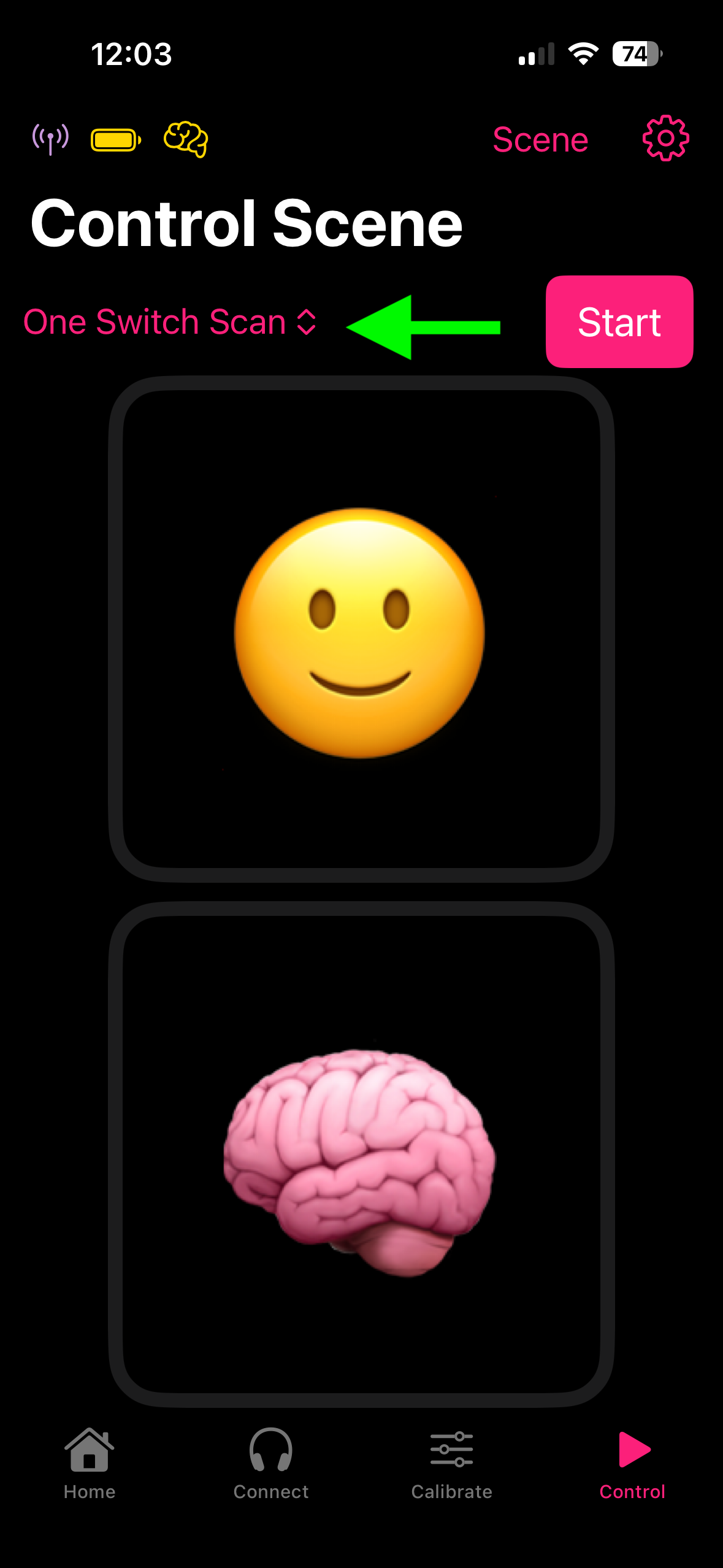
Choose the control mode from a drop down on the top left of the Control tab.
## If you have one Command
### Direct mode
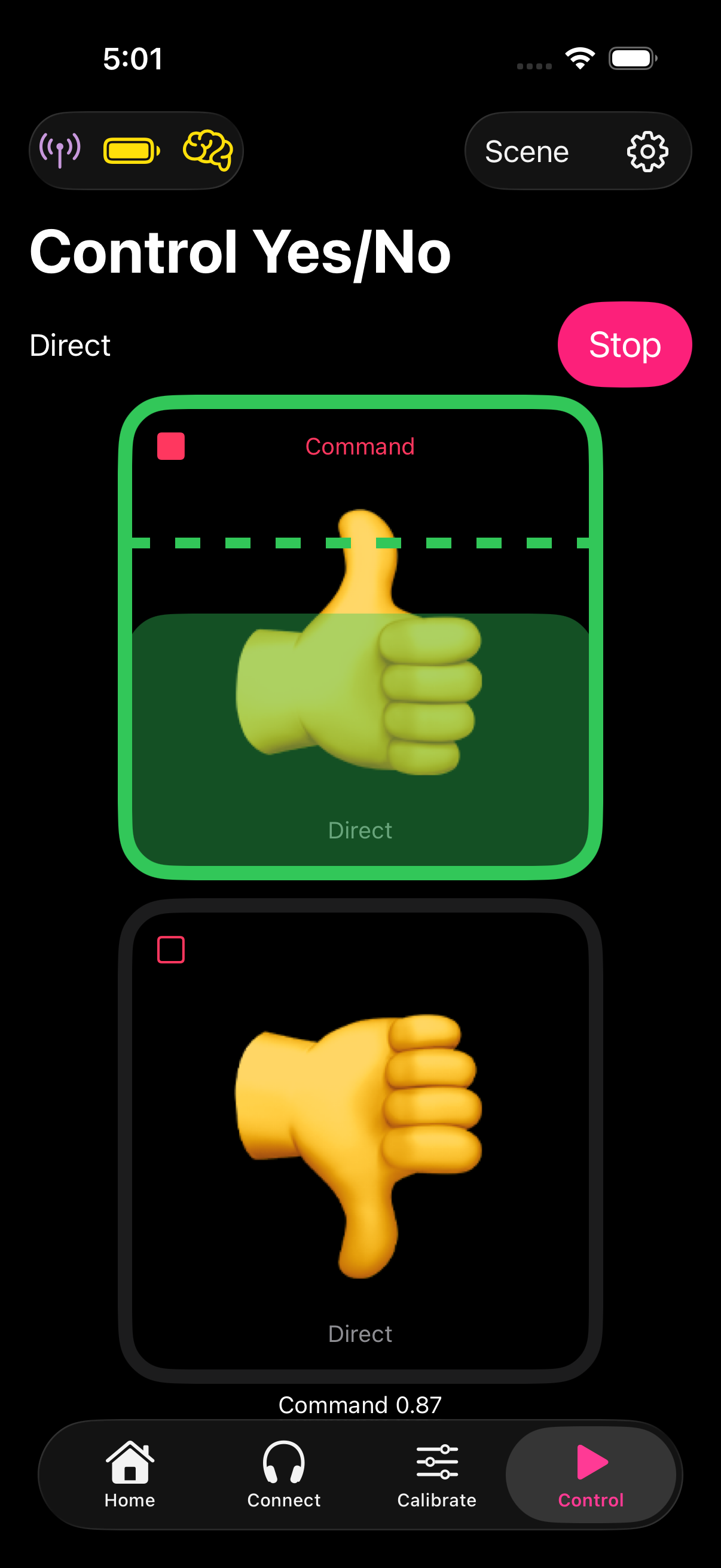
Direct mode lets you control an output of your choice.
To use direct mode:
* Select direct mode
* Tap Start
* A single enable button appears on each output
* Tap enable of the output you wish to control
* The name of the command appears at the top of the output.
* Use your command
* The output activates
### One Switch Scan
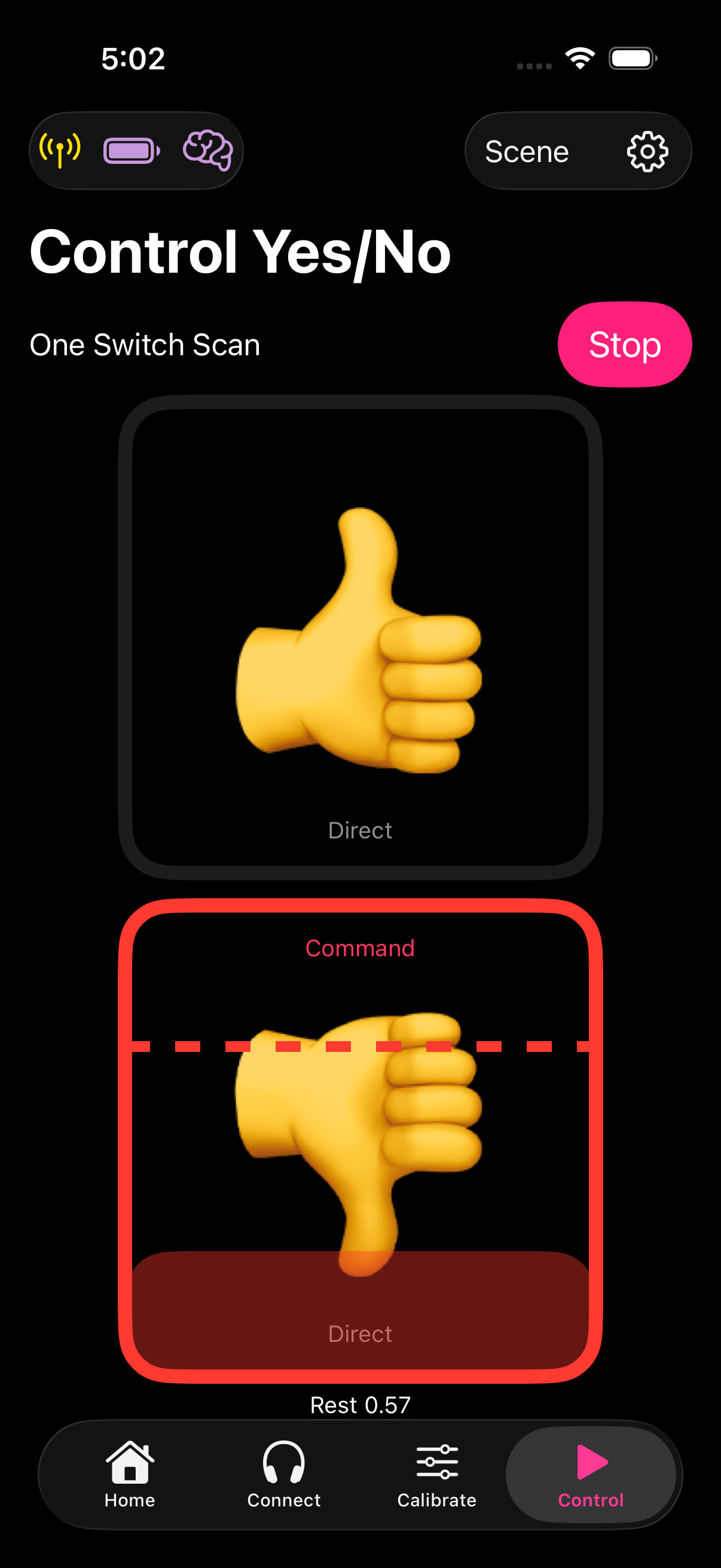
One Switch Scan automatically enables outputs, one at a time.
To use one switch scan:
* Select one switch scan
* Press Start
* When the output you want is enabled, use your command to activate it.
## If you have two Commands
### Direct mode
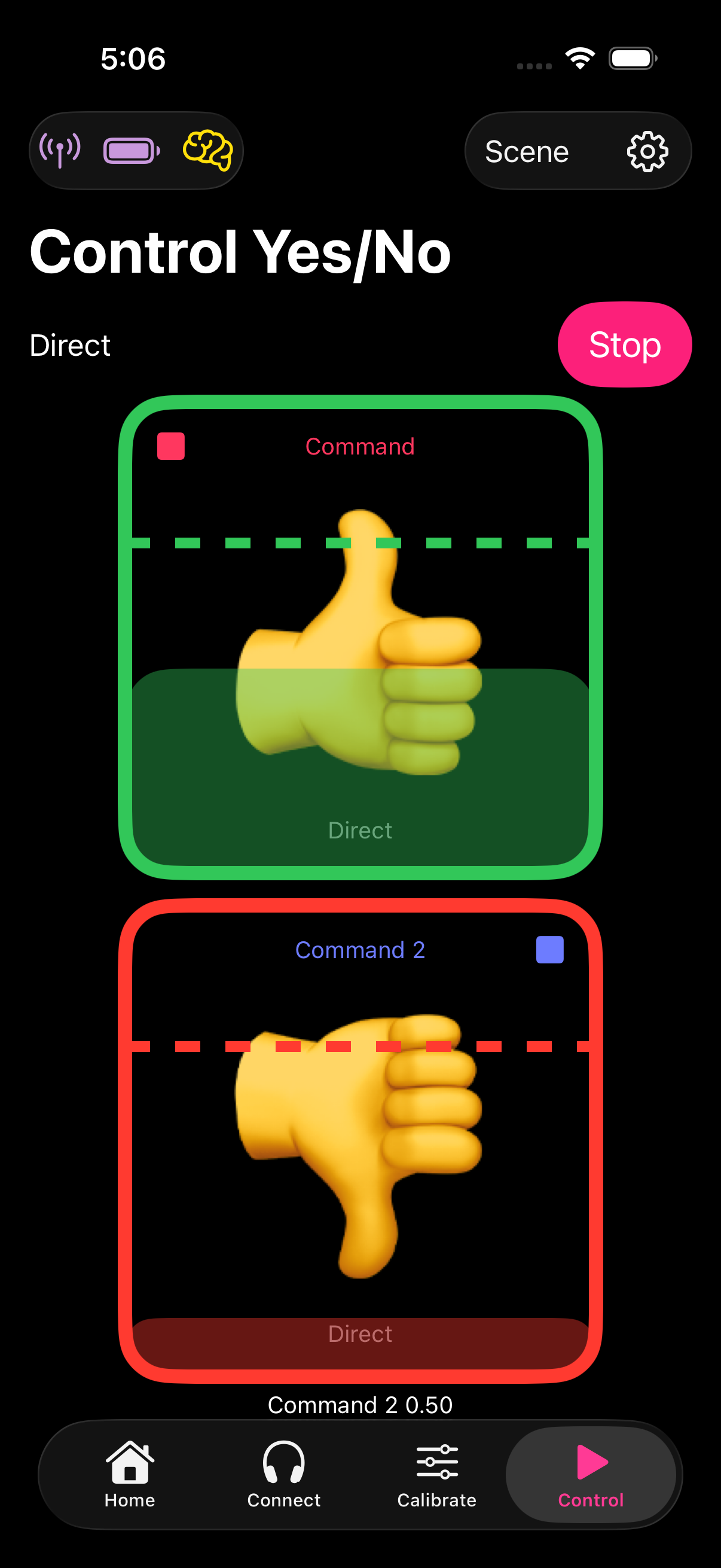
Direct mode lets you control an output of your choice with the command of your choice
To use direct mode:
* Select direct mode
* Tap Start
* Each output has two enables, one for each command
* Tap the enable button corresponding to the command
* The name of the command appears at the top of the output.
* Use one of your commands
* Outputs enabled for that command will activate
### One Switch Scan
See [One Switch Scan](#one-switch-scan) section above.
See [Control settings](/think2switch-knowledge-guide/setup-guide/control/control-settings.md#one-switch-scan-with-two-commands) to adjust which command is used when scanning.
### Two Switch Scan
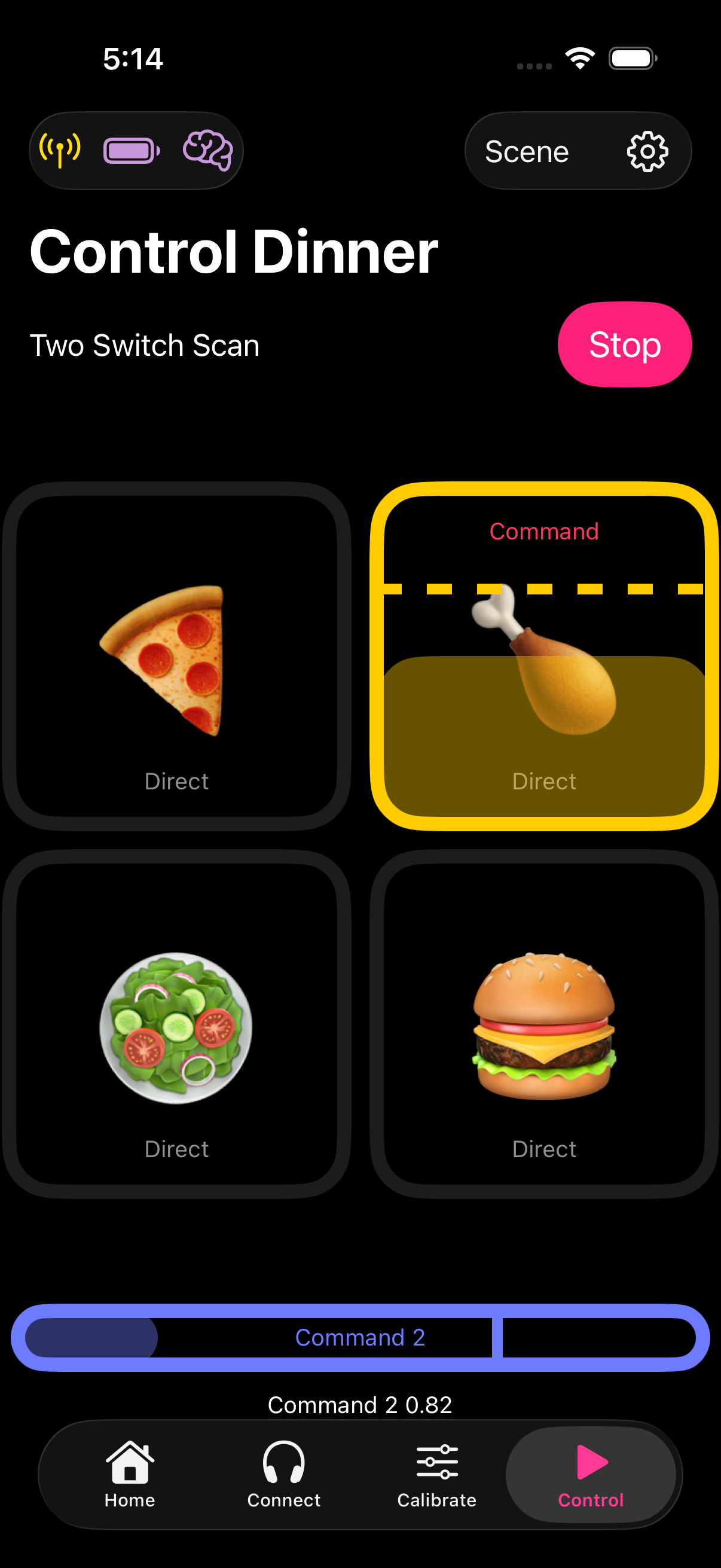
Two Switch Scan uses two commands to enable and activate an output:
* **Move** Command
* To move to the next output and enable it
* The strength of this command appears in a blue bar at the bottom of the screen
* **Select** Command
* Activates the enabled output
* The strength of this command appears on the output itself